

SKU:740617344806
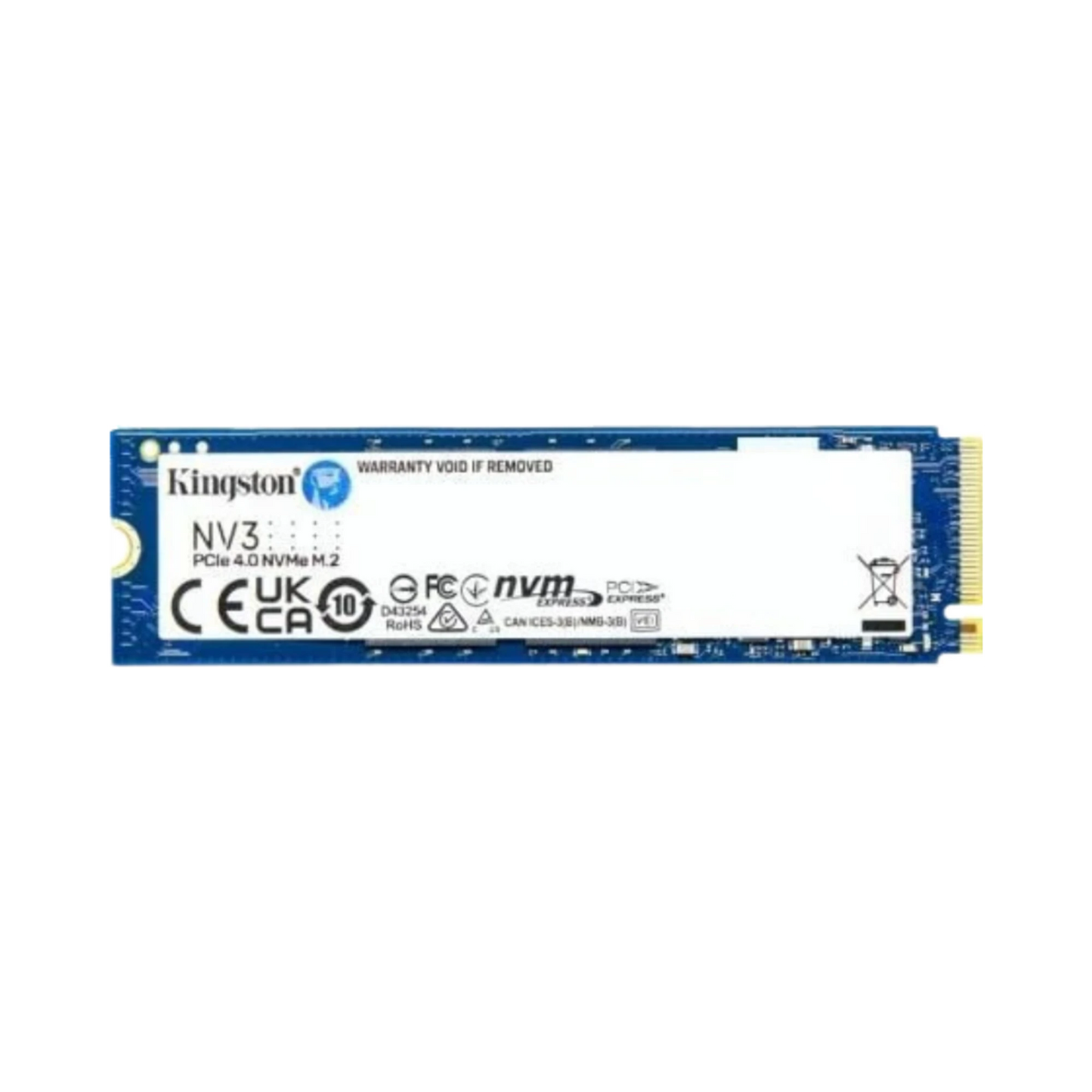
Kingston NV3 500GB - Black
Couldn't load pickup availability
About the Product
Is it worth buying?
Yes, especially if you are looking for a storage upgrade at a competitive price. The Kingston NV3 offers PCIe Gen4 speeds (up to 5100MB/s read) with great value for money. Ideal for laptop upgrades, gaming PCs, or content creation. The 500GB capacity is versatile for most users in Portugal.
What is the warranty in Portugal?
This product includes a 3-year warranty according to Portuguese law. We recommend keeping your purchase invoice from BeeStore to facilitate any claims. Contact Kingston PT support for details on technical assistance.
Delivery time?
Orders placed on business days are usually processed promptly. Delivery is normally within a few business days, subject to availability. Confirm deadlines at checkout.
Does it come ready to use?
Yes, the SSD comes ready for installation. Simply insert it into the available M.2 slot (compatible with computers with an M.2 PCIe Gen4 or Gen3 input). It does not require additional drivers on Windows 10/11, macOS, or Linux. Formatting is automatic. We recommend updating the firmware via Kingston software if indicated after installation.
Differences vs competition?
The NV3 competes with Samsung 990 EVO and Crucial P5 Plus. Advantages: more affordable price, solid Gen4 speeds, reputable brand with a 3-year warranty according to Portuguese law. Disadvantages: smaller DRAM cache than some top competitors. Choose the NV3 if you prioritize value; choose premium alternatives if you seek maximum performance for intense professional workloads.
Summarized technical specifications
- Interface: M.2 2280 PCIe Gen4 NVMe
- Capacity: 500GB
- Read speed: up to 5100MB/s
- Write speed: up to 3500MB/s
- Warranty: 3 years (Portuguese law)
- Compatibility: Windows, macOS, Linux
How to install on your PC?
Turn off your PC and unplug it from the power. Open the side panel or identify the M.2 slot on the motherboard. Remove the shield if there is one. Insert the SSD at a 30° angle into the slot, then press down until you hear a click. Secure it with the included screw. Close the panel, plug it back in, and the SSD will be automatically detected in the BIOS.